
Is an ASUS Notebook Laptop the Best Choice for Work, Study, and Travel in 2026?
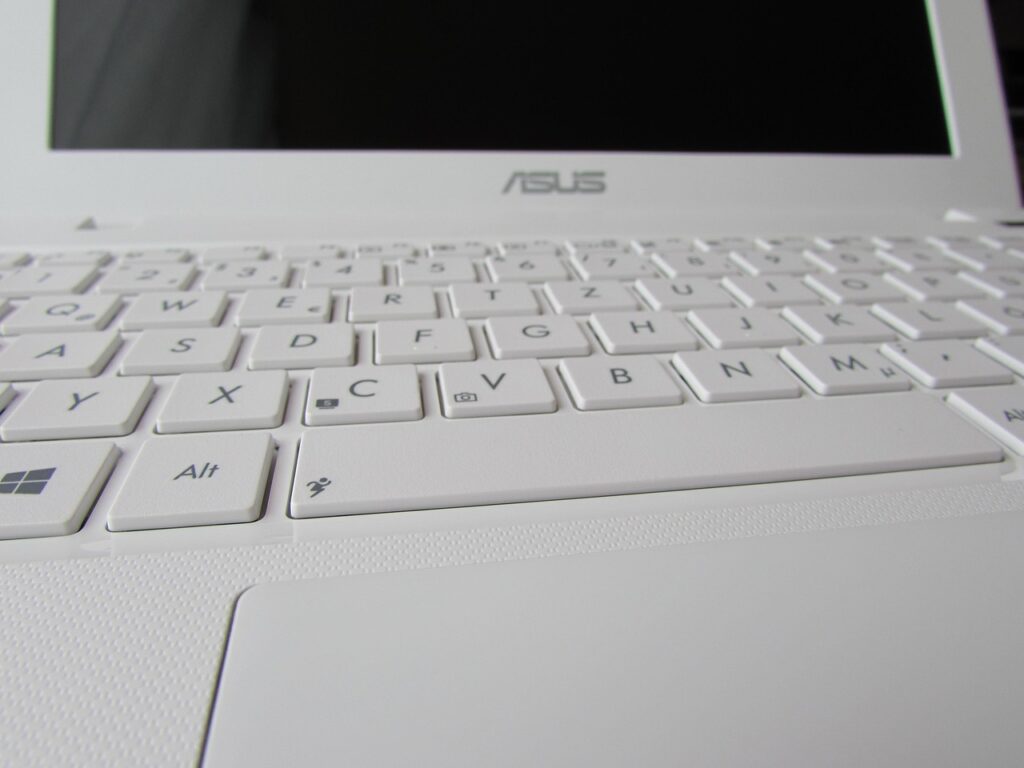
Is an ASUS Notebook Laptop Right for Your Daily Workflow?
If you are comparing an asus notebook laptop, do not start with the processor name or the discount tag. Start with your normal day: browser tabs, Excel files, video meetings, class notes, shared folders, some photo edits, and maybe a game after work. For wider notebook buying ideas, you can also check the Notebook category and compare common use cases before choosing one model.
ASUS sells many kinds of laptops, so the brand name alone does not tell the full story. One buyer may mean a slim Zenbook, another may mean a low-cost Vivobook, a business ExpertBook, or a TUF and ROG model built for graphics work. Market size also tells us why this segment keeps moving. Gartner reported in January 2026 that worldwide PC shipments passed 270 million units in 2025, up 9.1% from 2024, and ASUS shipped 18.512 million units with a 6.9% share. That scale helps in daily buying because common lines usually have better stock, easier part checks, and more user feedback. Source: Gartner, January 2026. (gartner.com)
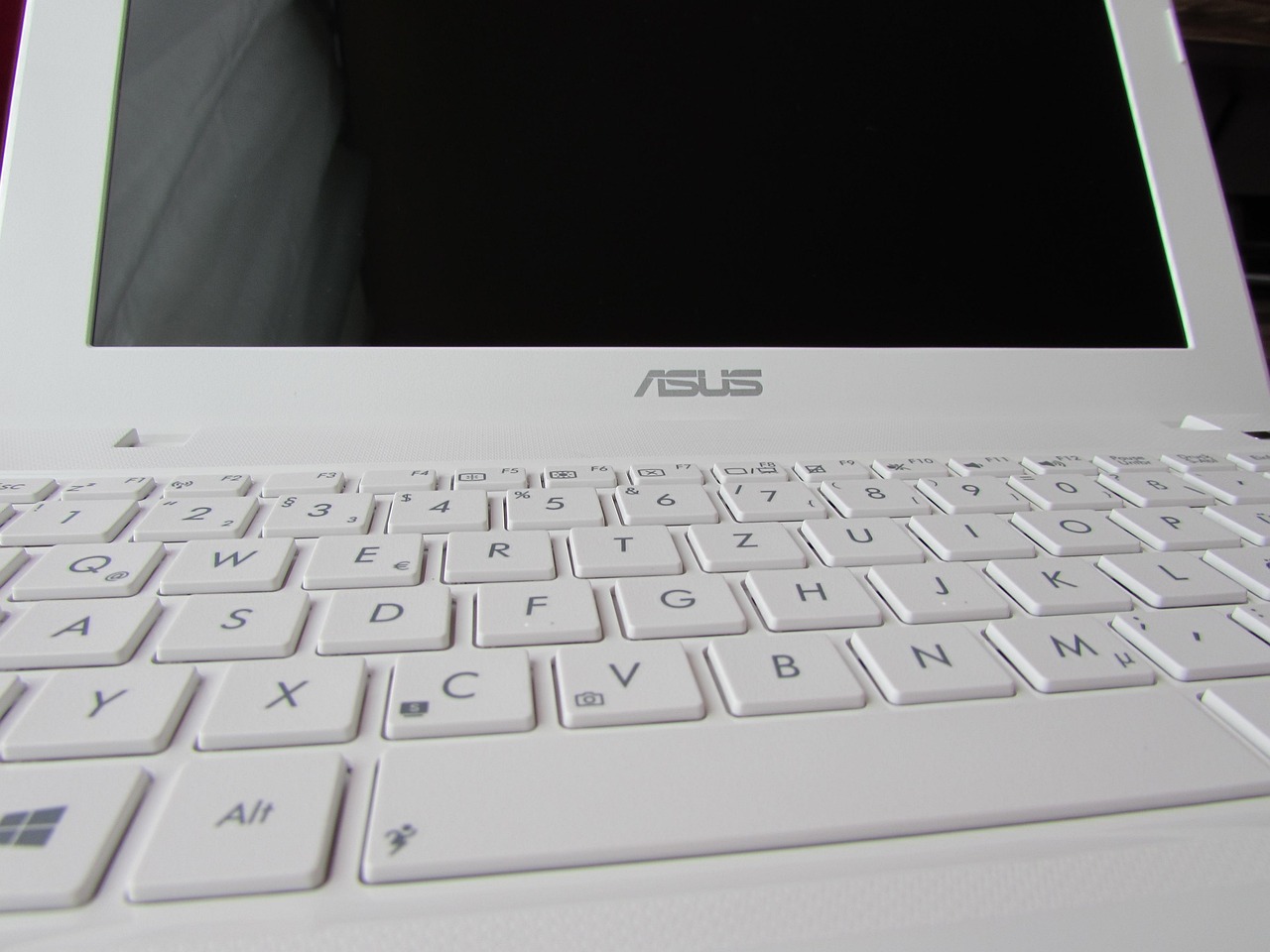
Students Need Light Carry Weight
If you carry a laptop between classrooms, dorm rooms, libraries, and coffee shops, weight becomes part of the purchase decision every day. A 14-inch ASUS notebook is often easier to carry than a 16-inch model, even when the larger screen looks better on a product page. For notes, research, web work, and online classes, check battery size, keyboard feel, webcam quality, and whether the charger fits well in a backpack. These details are not exciting, but they are the parts students deal with all week.
Office Buyers Need Stable Ports and Support
For office users, ports can be more useful than extra benchmark speed. A laptop with USB-C charging, HDMI, USB-A, and a stable Wi-Fi card can reduce cable mess and cut down on adapter problems. If you connect a monitor, scanner, mouse, headset, and printer, read the full port list before placing the order. Business buyers should also check warranty terms, BIOS management, TPM support, webcam privacy shutters, and Windows 11 Pro options when the company needs them.
Creators Need Screen Quality First
For design work, product photos, social posts, and light video editing, the screen affects the whole job. Many ASUS OLED models list wide color coverage and stronger contrast than basic panels, but the real spec still depends on the exact model number. A creator should not only ask whether the laptop has OLED. Ask about resolution, refresh rate, brightness, color gamut, and whether the screen is glossy, anti-glare, or touch. One small panel difference can change how easy it is to edit a photo or review a layout.
Which ASUS Series Should You Compare First?
ASUS names can look confusing at first, but the product families make more sense once you match them with the buyer. Start with the series, then screen size, then the exact configuration. Do not compare a high-end Zenbook with an entry Vivobook by price only. They are made for different users, so the better choice depends on the work.
Zenbook for Portable Premium Work
Zenbook is usually a good fit if you want a thin ASUS laptop for writing, research, sales calls, travel, or office work. The line often focuses on lighter chassis designs, OLED display choices, better battery targets, and a cleaner hand feel. If you travel often, a Zenbook-style machine can justify the higher price because you open it in meetings, type on it for hours, and carry it through airports. That is not a lab score; it is the way the laptop is used.
Vivobook for Everyday Value
Vivobook models suit buyers who want a capable daily notebook without paying for every premium finish. ASUS official specs for the Vivobook S 14 OLED M5406, checked in July 2026, list configurations with 14-inch 16:10 OLED panels, 100% DCI-P3 color coverage on many options, up to 32GB LPDDR5X memory on some configurations, and PCIe 4.0 SSD storage. This setup works well for study, office work, streaming, and regular creative jobs. Still, confirm the exact SKU because not every shop sells the same panel or memory setup. Source: ASUS official product specifications, July 2026. (asus.com)
TUF and ROG for Graphics Heavy Tasks
TUF and ROG models make more sense when graphics power is part of the job. This includes 3D work, heavier video projects, CAD learning, and gaming. The tradeoff is plain: more graphics power often brings more heat, louder fans, a larger charger, and shorter battery life under load. If you mostly write documents and watch lectures, a gaming laptop can feel like too much machine. If you render, game, or use GPU-based apps, it may be the right tool.
How Much Performance Do You Really Need?
Performance is where many buyers spend more than they need to. The fastest chip is not always the best notebook for the user. A better target is smooth daily work for three to five years, with enough memory and storage for the files, apps, and habits you already have.
CPU Choice Shapes Daily Speed
For basic office work, a current Intel Core, AMD Ryzen, or Snapdragon-class Windows laptop can feel quick when it is paired with enough RAM and an SSD. For large spreadsheet models, coding, photo batches, and video editing, choose a stronger processor tier. Cooling matters as well. A thin laptop with a powerful chip may slow down during long heavy jobs, while a slightly thicker model may hold speed for longer. Reviews from trusted test labs are useful here because a spec sheet does not show fan noise or heat behavior.
RAM and Storage Decide Headroom
For 2026 buying, 16GB RAM is a sensible base for most Windows 11 users. Light student users can get by with less, but browser tabs, cloud apps, and video meetings can use memory quickly. If the RAM is soldered, buy enough capacity from day one because upgrades may not be possible. For storage, 512GB SSD is enough for office and school files. Choose 1TB if you keep photos, videos, games, large design files, or offline course materials. Leaving some free space also helps the system run more smoothly.
NPU Features Matter Only for Some Apps
Newer laptops may include an NPU for on-device neural tasks. This can help with meeting effects, local assistant tools, background blur, noise tools, and future software that supports local AI processing. Microsoft introduced Copilot+ PCs with silicon capable of 40+ TOPS in May 2024, while some current ASUS configurations list AMD XDNA NPUs up to 50 TOPS. The buying point is simple: pay for NPU headroom if you plan to keep the machine for years or use supported local features. If your work is mainly email, documents, and web apps, a large premium is harder to justify. Sources: Microsoft official blog, May 2024; ASUS official specifications, July 2026. (blogs.microsoft.com)
What Screen, Battery, and Build Details Should You Check?
After processor and memory, the parts you touch and see matter a lot. You look at the screen, type on the keyboard, carry the chassis, and depend on the battery. A fast laptop with a poor display or loose hinge becomes irritating quickly.
OLED Panels Help Color Work
ASUS is known for offering OLED panels across several consumer laptop lines. OLED can give deep blacks, strong color, and higher contrast, which helps with photo viewing, streaming, and design work. Still, not every OLED option is built the same. Check brightness, resolution, refresh rate, and color coverage before you buy. For long document work, also read about eye comfort settings and screen finish. A glossy screen can look good in a store but be hard to use near a sunny window.
Battery Claims Need Realistic Margins
Battery life claims should be treated as lab results, not fixed promises. Your actual time depends on brightness, Wi-Fi, apps, video calls, keyboard backlight, and processor load. ENERGY STAR computer criteria focus on efficient operation in modes such as off, sleep, and idle, plus power management and efficient power supplies. This is useful background, but it does not replace real user testing or reviews from people doing similar work. Source: ENERGY STAR computer product criteria, accessed July 2026. (energystar.gov)
Durability Labels Need Context
Some ASUS business and gaming laptops mention military-grade testing or reinforced designs. That can be useful, but it does not mean the laptop is drop-proof or careless-use-proof. For travel or school use, check hinge feel, keyboard flex, chassis material, and whether the screen opens smoothly with one hand. If the notebook will be used in a warehouse, classroom cart, or shared office, a spill-resistant keyboard and easier service design may matter more than a thinner body. See also: Gift Guide.
How Should You Buy an ASUS Notebook Laptop for Business or School?
Buying one personal laptop already needs care. Buying several units for a class, office, shop floor, or export customer needs even closer checking. Model numbers, warranty coverage, charger type, language layout, and replacement timing can all change the final cost.
Warranty Terms Vary by Region
ASUS warranty details depend on product type and country. ASUS support pages updated in 2024 and 2026 show that batteries often carry separate coverage terms, and commercial notebook battery terms can differ by series and region. Do not assume one global rule applies to every shipment. Before a bulk order, ask the seller for the warranty card, country coverage, service channel, battery policy, and dead-pixel terms if screen quality is important. Source: ASUS official support pages, 2024 to 2026. (asus.com)
Model Numbers Prevent Costly Mistakes
A retail title may say ASUS Vivobook S 14 OLED, but the model code tells you what is really inside. Two units with the same short name can have different processors, displays, RAM, SSD size, Wi-Fi, operating system, and keyboard layouts. This happens often in laptop sales, not only with ASUS. Always copy the full SKU from the box or invoice. For export orders, confirm plug type, warranty country, keyboard language, and whether Windows is preinstalled.
Stock and Lifecycle Affect Bulk Orders
For business or school, a laptop is not only a single device. It becomes part of a working set: chargers, sleeves, docking stations, mice, labels, spare adapters, and replacement units. If you may need the same model again in six months, ask about lifecycle and stock plans before you commit. Counterpoint Research reported in July 2025 that global PC shipments rose 8.4% year over year in Q2 2025, helped by Windows 10 replacement demand and stronger commercial buying. That demand can make popular configurations sell through quickly. Source: Counterpoint Research, July 2025. (counterpointresearch.com)
What Quick Checklist Helps You Choose with Less Risk?
Use a simple checklist before payment. It slows the purchase just enough to catch a poor match. A laptop is not a cheap item, and returning one after setup can waste time for both the buyer and the seller.
Match the Laptop to Three Main Tasks
Write down your top three tasks first. If they are school notes, video calls, and web research, choose a light 14-inch model with 16GB RAM and a comfortable keyboard. If they are design, photo edits, and presentations, put screen quality higher on the list. If they are gaming, 3D work, and video exports, look at TUF or ROG models with a dedicated GPU. This task list is more useful than a discount sign in most real purchases.
Compare Total Cost, not Only Price
The cheapest laptop can become costly once you add a bigger charger, dock, sleeve, USB-C hub, warranty upgrade, or storage subscription. Compare the full cost over the planned use period, not only the checkout price. A $70 better screen or larger SSD can be smarter than buying accessories later. For school buyers, label-friendly chargers and tough sleeves are plain items, but they help a lot in daily use.
Keep Accessories Simple and Useful
You do not need a bag full of extras. A sleeve, compact mouse, USB-C charger, and maybe a small hub will cover most users. For desk work, add a monitor stand or external keyboard if posture is a concern. If you travel, check charger wattage and airline rules for power banks. Also check whether the laptop charges from standard USB-C power delivery. That single detail can save space in a travel bag.
- Choose 16GB RAM for most Windows 11 users, 32GB for heavier creative or data work.
- Pick 512GB SSD for normal study and office files, 1TB for media, games, or large projects.
- Check the exact panel, not just the word OLED or IPS.
- Confirm ports before buying a dock or hub.
- Save the model code, invoice, warranty card, and serial number on purchase day.
FAQ
Q1: Is an ASUS Notebook Laptop Good for Students? A: Yes, if you choose by weight, battery, keyboard comfort, and RAM first. A 14-inch Vivobook or Zenbook with 16GB RAM and a 512GB SSD fits many student workloads.
Q2: Should You Choose Zenbook or Vivobook? A: Choose Zenbook if you want a more premium travel laptop. Choose Vivobook if you want solid daily value for study, office tasks, streaming, and light creative work.
Q3: Is OLED Worth It on an ASUS Laptop? A: OLED is worth it if you care about contrast, color, movies, or visual work. For long text work in bright rooms, also check brightness, finish, and eye comfort settings.
Q4: How Much RAM Should You Buy in 2026? A: For most buyers, 16GB is the safe starting point. Choose 32GB if you edit video, run design tools, keep many apps open, or plan to keep the laptop for a long time.
Q5: What Is the Biggest Mistake When Buying an ASUS Laptop? A: The biggest mistake is buying by series name only. Always check the exact model number, processor, RAM, SSD, screen, ports, operating system, keyboard layout, and warranty region.